Employee instructions
Enter user instructions for completing this task. The assignee can view them on the Task Summary page. Employee instructions can also be included in a task type notification message.
Text Editor
Using the Text Editor, you can include rich text, font, links, tables, images, and more to supporting content in your task instructions. (Support can configure a default folder for links and images.)
If you add a link to an external website, note that the system handles it based on whether or not it is a trusted site. A client administrator adds trusted sites to your system.
Keywords
The Employee Instruction field can contain (predefined) keywords. Keywords are optional. Available keywords are:
- insertForm: Links to a specific form
- insertesurvey: Links to the survey selected in the Pick Survey Form list
- PRINT_ALL_FORMS: "Print all printable forms" link is added
- Insert_lesson_link: Links to the eCourse or eCourses selected in the Learning Course Selection list
Advanced Option: Variable Information
The Employee Instruction field can contain (predefined) employee information as seen on the Employee Profile page of the Find Employee page. Including employee information in the task description is optional.
Adding variable information to the task description message for the employee is similar to using fields for a mail merge application. You may add fields to the instruction text which will be replaced with the employee information when the page is viewed.
The following tag must be included in the description text for the predefined values to be included:
<$include;/RedCarpetDotNet/Forms/FormTables>
Each field is available through its predefined tag. The syntax of the tag is:
<$client.tForWhomUserInfo.fieldVariable>
where the fieldVariable is the underlying field in your Employee Profile page. If you are not sure of the exact spelling of your field variables, the underlying field variable syntax available by choosing "Show Employee Profile Fields" in the Notification definitions page.
If you are using the Notifications definitions page to collect your Employee Profile field names, use the field variable as you see it in the list. The list might display: EmergencyContact
The notification field will be: [$EP_EmergencyContactInfo$]
The syntax to use in the task definition Employee Instructions is:
Your emergency contact is: <$client.tForWhomUserInfo.EmergencyContact>
Contact Support for additional information for help with the syntax of your implementation.
Form or Document options
Form or document options are available when you select the Create Unassociated Task button on the Manage Task Definitions page.
Do not include a Form or Document
Click this option to NOT include a Form or document.
Include a Form to fill out or review
Click this option to associate a form for data collection or review. This option applies if task assignee is going to add any data to the form or mark the form as finished upon task completion.
Select a Form from the drop-down list. The Forms listed are filtered based on your permissions and permissions associated with the form when it was created.
Tip: If you select an I-9 compliant Form, the keywords insertform or insertForm must be included in the Employee Instructions box. Otherwise, the I-9 step number compliance rules are not available for selection.
Select any additional options.
Request a document to be uploaded
Click this option to request a document to be uploaded during this task. Select a upload type from the drop-down list.
Select the Upload is required to complete task check box if you want to make the user upload a document to complete the task. If not selected, the task can be completed if a document is not uploaded.
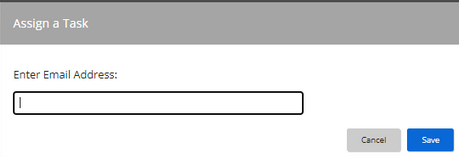
Select the Allow task to be assigned to an email check box if you want the document task to be assigned to an email address. When the benefiter runs the tasks, they can assign the task to an email address by entering an email address and clicking Save:
Request a document to be review
Click this option to request a document to be reviewed during this task. Select an upload type from the drop-down list.
Note: This option applies to employer-uploaded documents that appear on the Forms tab and employee-uploaded documents that appear on the Documents tab.
Prepare a download package
Click this option to specify the Forms and uploaded documents to include in the download package.
Note: Supported file types are pdf, gif, jpeg, jpg, png, bmp, and tiff.
(Optional) Change the label of the Download Package button.
Include a Survey Form to fill out
Click this option to associate a survey with this task. Select the survey from the Pick Survey Form list.
Learning course options
Learning course options are available when you select the Create a Learning Task button on the Manage Task Definitions page.
Learning Course Selection
Select the Rival Learn eCourse to launch with this task. Only eCourses can be launched. Instructor-led courses and training events are not available for selection.
Tip: The eCourses available for selection are accessed from a course catalog or catalogs that Rival configured for you. If an eCourse is not available for selection, it's not available in the configured course catalogs.