Request a document to be uploaded
- As part of a task definition, you may want to set it up to request a benefiter (like a new hire) upload a document. For example, you may want a new hire to upload a photo for a photo badge, a valid drivers license, documentation for direct deposit, and so on.
- This topic assumes you are in a task definition on the Employee Instruction tab.
- For this topic, we'll use an example of uploading a photo for a photo badge.
- From the task definition, click the Employee Instruction tab.
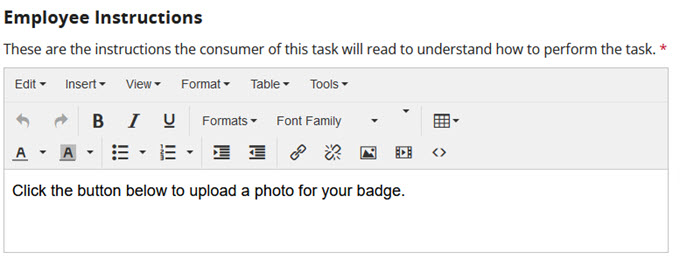
- In the Employee Instructions box, tell the benefiter how to perform the task.
For our example, let's enter instructions about uploading a photo:
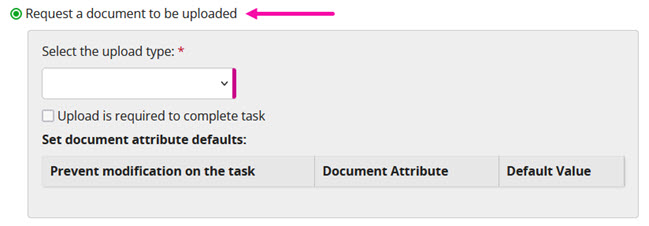
- Click Request a document to be uploaded.
-
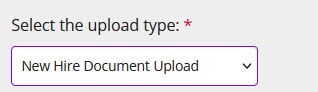
Click Select the upload type and click one of these options:
- New Hire Document Upload
- I-9 Document Upload
- Employer Document Upload
For our example, let's select New Hire Document Upload:
- (Optional) If the document must be uploaded before the task can be completed, click Upload is required to complete task. Otherwise, do not check this option.
- Set document attributes:
|
This attribute: |
Does this: |
|---|---|
|
Prevent modification on the task |
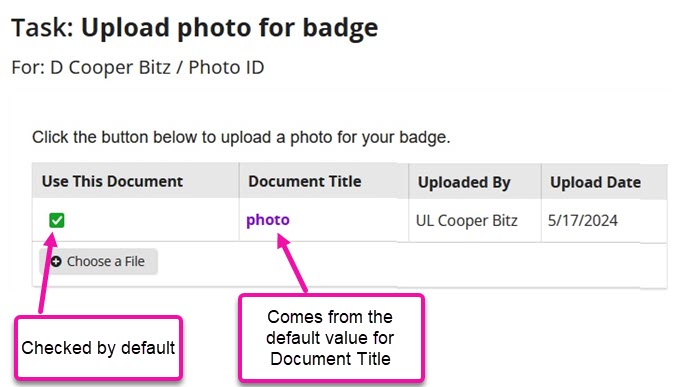
Controls whether the Use This Document check box is selected by default in the Uploaded Documents table on the task.
|
|
Document Attribute (Document Title) |
|
-
In our example, let's say we selected (checked) the Prevent modification on the task option and entered photo for Document Title:
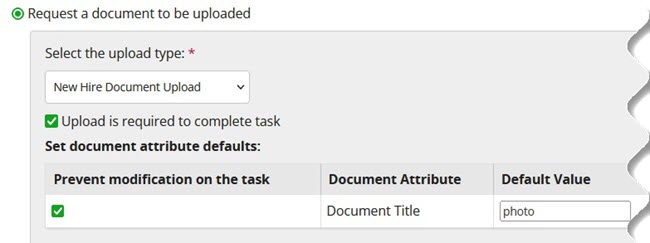
The Uploaded Documents table on the task would look like this after the benefiter uploaded a document:
- Click Next or Save.
The task can now be pushed to benefiters as part of the event it is associated with.