Employee Portal
The Employee Portal is a customized website that delivers a personalized experience to your employees throughout their lifecycle events — including onboarding, offboarding, transitions, and rehires. Use it to communicate information about events, provide access to tasks and employee profile information, and guide employees through their assigned journeys.
There are multiple portal versions available. Your organization's portal version depends on when your portal was configured and whether you have upgraded.
| Portal version | Description |
|---|---|
| Employee Portal (Enhanced) | Guided checklist experience with an interactive progress bar, structured task sections (What's Next, On the Horizon, All Done), and an upfront document checklist. The recommended portal experience. |
| Employee Portal (2024) | Modern experience with a progress bar and task list, but without guided progress tracking or document visibility at-a-glance. |
| Portals (Legacy) | The original portal with content-based layouts and portal roles. Customized during implementation by your consultant. |
Employee Portal (Enhanced)
The enhanced Employee Portal provides a structured, guided experience for employees across any lifecycle event. It gives employees visibility into their full journey from day one — including what's done, what's next, and what's coming — so nothing appears unexpectedly.
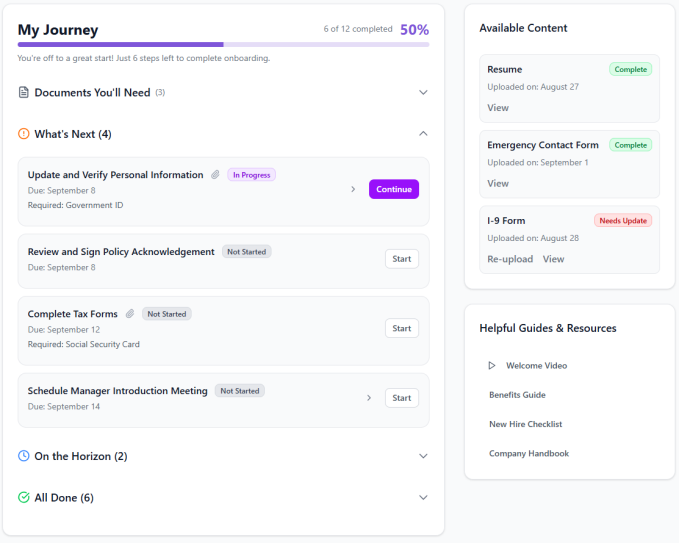
The portal is organized into two tabs:
- My Journey — The primary view for employees. Displays the progress bar, task sections, and document checklist.
- About [Company Name] — Contains company-specific information such as values, culture, and the employee handbook.
My Journey
The My Journey tab includes the following elements:
- Progress bar — An interactive progress bar at the top shows overall completion percentage across all assigned tasks. Employees can click items in the progress bar to navigate directly to a task. When all tasks are complete, a celebration animation plays to acknowledge 100% completion.
- Document checklist — Below the progress bar, a section labeled Documents You'll Need lists all documents the employee will need across their assigned events. Each document shows its title (from the task's Document Attributes), which task it is needed for, when it is due, and whether it has been provided. This helps employees prepare required documents in advance.
- Task sections — Below the document checklist, tasks are organized into three sections:
- What's Next — Active tasks that are currently due and need to be completed.
- On the Horizon — Tasks that are not yet activated but are coming up.
- All Done — Completed tasks.
- Available Content — A right-side panel showing documents the employee has already provided, along with relevant links and resources.
About [Company Name]
The About tab contains company information configured by your organization, such as:
- Company values and culture
- Employee handbook
- Welcome video
- Other organizational content
Customization
Client administrators can customize the following portal elements from the admin interface. All settings from the previous portal version remain in place.
Logo settings
Navigate to Gear icon > General Settings > Express Portal Global Settings to configure:
- Company Logo (Light Mode) — Upload your organization's primary logo for light mode display.
- Company Logo (Dark Mode) — Upload a light-colored version of your logo for visibility on dark mode backgrounds.
Home page settings
From Express Portal Home Page Settings, you can:
- Show/hide Journey section — Toggle the My Journey section on or off for the portal home page.
Additional customization
- Welcome message — A hero section with a personalized greeting that includes the employee's name.
- Video — An optional video section for a welcome video or company introduction.
- Text content — Editable titles and body text throughout the portal.
- Branding — Background colors, themes, light/dark mode support.
Key info
- The enhanced Employee Portal is configured and set up by your Technical Services team. Contact your Rival representative to get started or to upgrade from a previous portal version.
- The progress bar calculates completion based on the total count of assigned tasks versus completed tasks.
- Tasks from multiple events can be displayed in a single portal view if configured.
- Once the portal is active, client administrators retain self-service access to portal settings (logos, welcome message, video, branding, and the Journey section toggle).
- Employees can navigate directly from the progress bar or task list to an individual task to complete it.
- The document checklist displays documents that are associated with tasks assigned to the employee, surfaced from task-level Document Attributes.
Employee Portal (2024)
The 2024 Employee Portal delivers a modern experience that helps employees move through their assigned events, but does not include guided progress tracking or document visibility at-a-glance. If you are on this version, contact your Rival representative to upgrade to the enhanced experience.
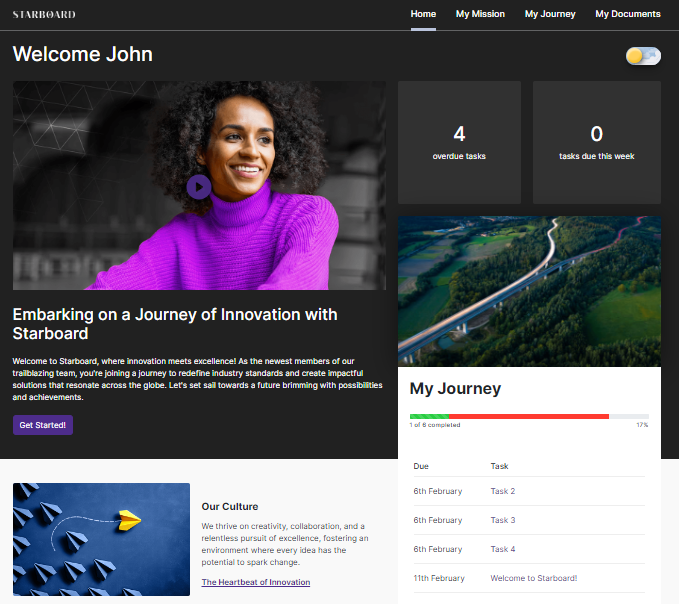
Key features of the 2024 portal:
- Self-loading progress bar and task list under My Journey.
- Task search and filter by status from the My Journey dashboard.
- My Mission page for organizational goals and role expectations.
- My Documents page for viewing and downloading documents.
Portals (Legacy)
The legacy portal uses content-based page layouts customized during your initial implementation. If you are on this version, contact your Rival representative to discuss upgrading to the enhanced experience.
Key info
- You can have a single portal or multiple portals. Multiple portals give employees a different look based on the event they are dealing with or based on assigned categories.
- Your Implementation Consultant helps you design your portal(s) during implementation. They also help you with security, portal roles to match your event categories and team structure, and more.
Good to know
- A task progress bar is configurable to display total count of tasks and count of tasks completed by the employee. It is displayed if the Portal option is configured to show it. (Task progress bar is not enabled by default.) Contact Rival Support to enable this feature.
- If a user has multiple events that share the same portal, the portal can be configured to allow tasks from multiple events to display in one portal. Contact Rival Support to enable this feature.
View available event portals
Portal links are defined in an event definition. A member of a team with the View Event Portals privilege can view any event portal.
- From the navigation bar, click Portals>Portal.
The Portals page opens.
- In the list, click a portal.
The portal is shown as it would appear to the current user.