Create a download package
- A task administrator can define a custom package of Forms and uploaded documents to be downloaded from a task. Supported uploaded documents includes Forms and these file types: .doc, .docx, .pdf, gif, jpeg, jpg, png, bmp, tiff.
- The task can be assigned to a new hire or any task assignee who has a Rival Workflow user account.
- Table of contents—if configured—is the first page of the download package. You can remove it if you want.
- If Forms (that are part of the download package) are defined to exclude signature completion, those Forms can be signed all at once by selecting the Sign Package check box.
Identify tasks to be part of download package
Identify the tasks to be part of the download package. Let's say these are part of it:
- Offer Letter
- Job Description
- Employee Handbook (and acknowledgement form)
- Customized Benefits package
Create tasks
Create tasks for:
- Each of the download package contents
- The download task itself
Tip: Make the download task dependent upon the Forms/document tasks. You want all those Forms completed and documents uploaded before the download package is created.
Here's an example:
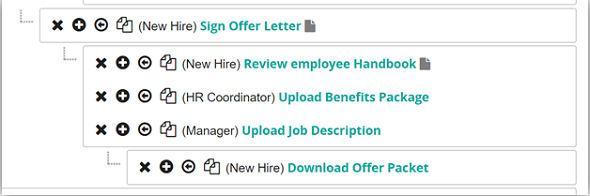
Configure items to be part of the download package
- From the Employees Instruction tab, click the Download Offer Packet task.
- Click Prepare a download package.
- (Optional) Change the default Download Package button label.
- Add Forms and uploaded documents.
- (Optional) Select Sign Package to have Forms (that were configured to defer signature) sent to the third-party signing service so they can be signed all at once.
- (Optional) Drag and drop to reorder the items.
- In the text editor panel (top of page), enter employee instructions.
- In the text editor panel, place cursor where you want to insert the download button. Click the button to insert it.
- Continue to set other task aspects (Categories & Assignments, Tasks & Dates, etc.)
- Click Save.