Categories & Assignment
Tasks are generated based on matching the category values assigned here in the task definition with the category values of the (event) benefiter. Keep in mind:
- Categories are used to determine if tasks should be generated.
- One or more values must be selected for each of the categories. If the task is not category specific, chose All.
- Attributes are event information that is informative to carry with the event. This information may be useful for display or for system integration purposes.
Note: If you want to use a category value to generate a specific task for a category of employees, and you do not see it, please contact your administrator. The category may not be present on your event definition or it may be an event attribute that should be converted to an event category.
Entering the following information to specify the task assignment:
Checkbox overrides the category driven task generation
Selecting this check box overrides category-driven task generation. This means the task is set to manual selection and makes it available through the Add a Task option.
Categories
Use the drop-down search to select one or more category values.
If you want, you can exclude category values from a task definition. Check the Do not include these category values box, and make selections.
Tip: Category values in red are excluded. Categories in green are included.
Assignment
-
Use the radio buttons to select the type of user assigned to complete this task. Some radio buttons will present additional selection criteria to be more specific. Select from one of the task assignment options:
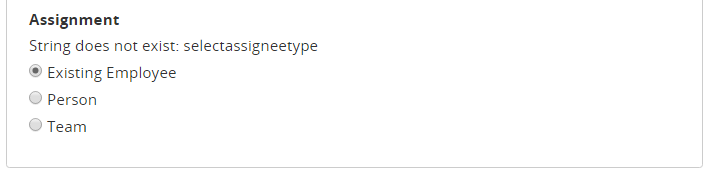
- Existing Employee: Default examples of this label are New Hire, Transferee and Exiting Employee. These are relative terms to assign the task to the user who benefits from the event.
-
An example of a task to be complete by the benefiter is a task to enter and submit an I-9 form.
No additional selection criteria is presented for the benefiter.
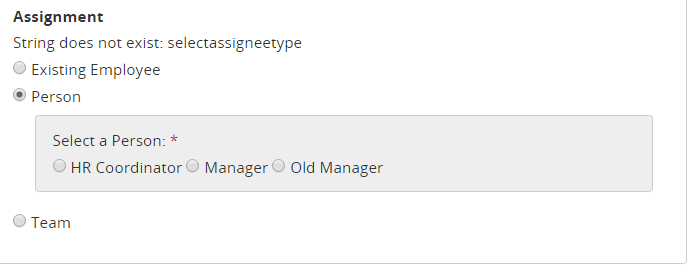
- Person:After selecting Person, additional selection criteria is shown so you can specify the person to be assigned this task. The selected Person is relative to the event benefiter.
-
When an event is launched, the Create Work Event pages collected the specific assignee for the (benefiting) employee.
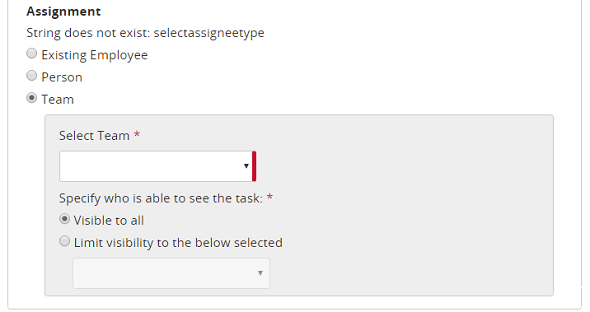
- Team: After selecting Team, an additional selection criteria is shown so you can select the team and a possible category match. Tasks with this assignment option appear in the Team Tasks tab of the Dashboard of the team members. Team tasks are not assigned until they are claimed.
-
You can narrow the team assignment (limit visibility) to a subset of the team members who match the selected category. For example, a task assignee in the HR Coordinators team can be restricted to seeing only the tasks for their locations for this event in their Team Tasks list.